

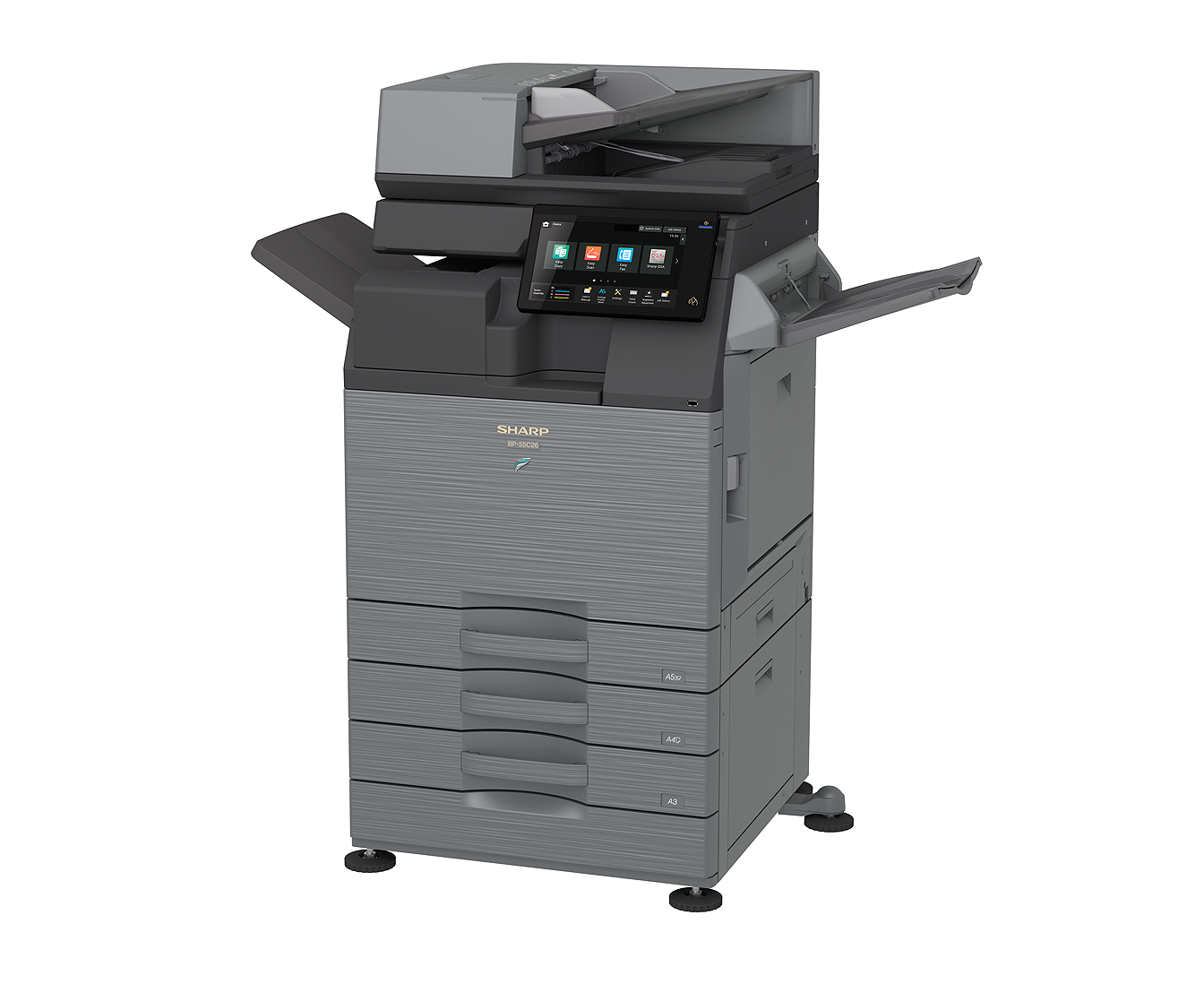
The Harnish Law Library maintains two copiers that will print in either color or black and white. This service is for Pepperdine users only.
The price per color impression is $0.35. This means that if you print a color document that is duplexed (printed on both sides), you will be charged $0.70 for that piece of paper (if there’s color on both sides).
Note that if you choose to print a document that has some pages that are black and white, and some that contain color, each black and white page will be charged at $0.06/impression, and the color impressions will be charged at $0.35 each.
To access this color copier using your laptop or other device, please go to THIS PAGE for detailed instructions.
Information on the School of Law provided print credit to students is HERE.
To do a quick color (or B&W) print job:
- Make sure your document is in PDF format.
- Make sure you have money on your ID Card (to add or to check go here)– If you don’t have funds on your account (separate from the law school printing account), you can’t print anything.
- Using your Chrome browser go to https://print.pepperdine.edu/.
- You will need to log in to this page with your WaveNet credentials.
- Then, click on the Web Print option on the left hand list of options. Click on Submit a Job.
- Follow the prompts (pick FindmeColor or FindmeBW). Note that the charge for color is $0.35 per impression (but only for the pages with COLOR on them), while pages with black and white are charged at $0.06.
- Select your number of copies (that’s your only option on this page– at this point, this service does not support duplexing or stapling).
- Upload your file or drag it to the designated area on the screen.
- You will need to go to the copier to Release the job.
- At the copier, login using your WaveNet credentials.
- Select your print job from the list and Release it.
To Make a Copy
- Make sure you have money on your ID Card (to add or to check go here)– If you don’t have funds on your account (separate from the law school printing account), you can’t copy anything.
- At the copier, login using your WaveNet credentials.
- Select Device Functions.
- Select Copy.
- Follow the normal prompts as you make your copies.
- NOTE: This system absolutely will NOT allow you to go beyond your available funds in your account (see #1 above to check your balance). For this reason, you may get logged off immediately after you perform your first copy job. To learn how to ensure that you don’t get logged off, do a “Job Build” and avoid needing to log in for each successive copy job that you want to do.