

After a closed Examplify exam, Windows or Mac desktop layout (icons, Dock/Finder, wallpaper) can look wrong. That is a known lockdown side effect—not permanent damage.
Windows
- Make sure Examplify is fully installed.
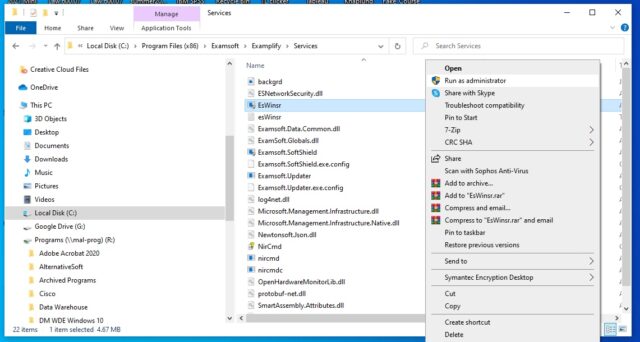
- In File Explorer open
C:\Program Files\Examsoft\Examplify\Services(current ExamSoft path for ESWinSR). On some installs the folder is underC:\Program Files (x86)\ExamSoft\Examplify\Servicesinstead. Path: Local Disk (C:) → Program Files (or Program Files (x86)) → ExamSoft → Examplify → Services.
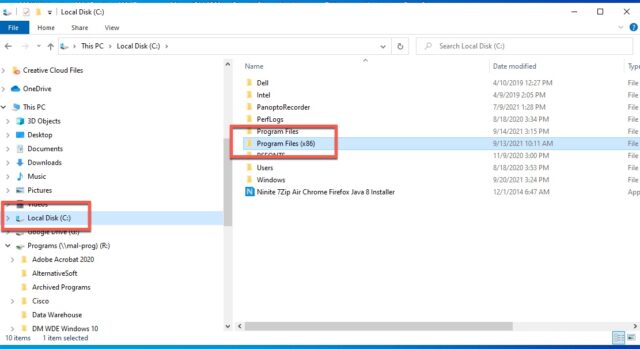
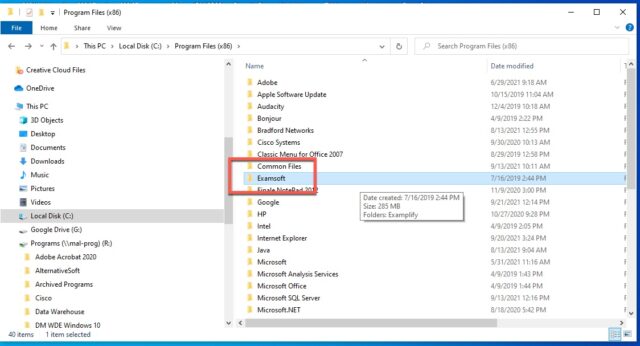
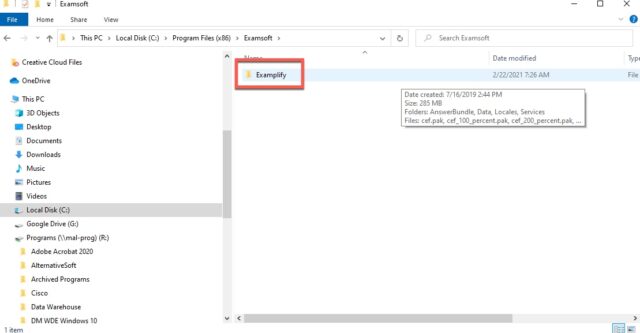
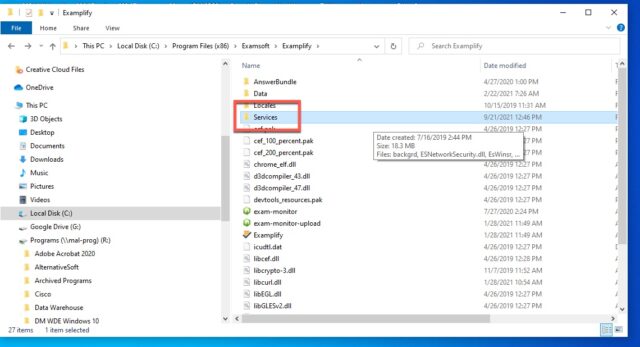
- Right-click EsWinsr (or ESWinSR) → Run as administrator. Allow the script to run; it closes on its own.
- Restart the computer.
Official ExamSoft guidance: Examplify: Run ESWinSR to Restore Windows Settings.
Mac
- Restart your Mac. This usually restores the normal desktop.
- If your wallpaper is still wrong, open System Settings → Wallpaper and choose your wallpaper again.
- If your desktop icons stay hidden after restarting, contact Technology Services or ExamSoft support at (866) 429-8889 (24/7).
ExamSoft reference: Troubleshooting Help.
Screenshots are from an earlier Examplify version; your screens may look slightly different.
Questions? Contact Technology Services at lawtech@pepperdine.edu or (310) 506-6417 (Public Services Desk, Harnish Law Library).